
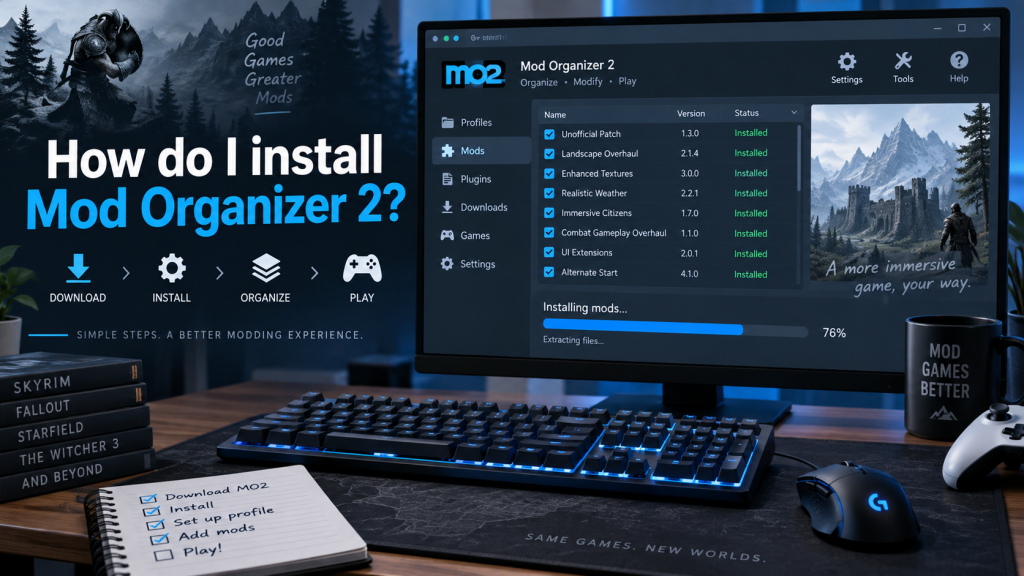
Mod Organizer 2, commonly called MO2, provides a powerful way to install, organize, enable, disable, and troubleshoot game mods without directly overwriting original game files. Its virtual file system helps keep modded game setups cleaner while giving users greater control over load order and individual mod configurations.
Installing Mod Organizer 2 is relatively straightforward when the correct installer, game location, and setup options are selected. The official MO2 documentation recommends using the installer version because it provides the easiest installation experience. MO2 can currently be downloaded through its official GitHub releases page or Nexus Mods.
Read More: Is Mod Organizer 2 Free to Use?
Mod Organizer 2 System Requirements
Recent Mod Organizer 2 releases require a modern Windows operating system. MO2 version 2.5.0 and newer requires Windows 10 version 1809 or later, or Windows 11, because of newer Qt and Python dependencies.
Before starting installation, make sure your computer has:
- Windows 10 version 1809 or newer, or Windows 11
- Enough storage space for MO2, downloaded mods, profiles, and game-related files
- A supported game already installed
- Administrator access when Windows permissions require it
MO2 works especially well with Bethesda titles and many other supported PC games. Compatibility can vary between games, so checking individual game support remains useful before building a large mod setup.
How to Download Mod Organizer 2
Mod Organizer 2 can be obtained through its official GitHub repository or Nexus Mods. The official documentation recommends the installer package for most users because it simplifies initial configuration.
Avoid downloading MO2 installers from unknown third-party websites. Using an official source helps reduce risks involving outdated versions, modified installers, or potentially unsafe files.
How to Install Mod Organizer 2 Step by Step
Follow these steps to complete a standard Mod Organizer 2 installation:
- Download the latest stable Mod Organizer 2 installer from the official GitHub releases page or Nexus Mods.
- Open the downloaded installer file and approve the Windows security prompt when appropriate.
- Read the installation options and continue through the setup wizard.
- Select an installation location with sufficient free storage.
- Complete the installation and launch Mod Organizer 2.
- Choose Create a New Instance when MO2 asks how you want to configure your environment.
- Select the game you plan to manage.
- Choose either a global instance or portable configuration depending on your preferred setup.
- Confirm the selected game paths and storage directories.
- Finish the setup process and allow MO2 to open its main interface.
After installation, MO2 should display your selected game along with separate sections for installed mods, plugins, downloads, executables, and profiles.
Global Instance vs Portable Instance
MO2 can manage installations using different instance types. Choosing the right option affects where configuration information, downloads, profiles, and mods are stored.
A global instance generally provides easier management when working with multiple games or standard Windows locations. A portable instance keeps most MO2-related information together with the application and can be useful for isolated modding configurations.
New users usually benefit from keeping their configuration simple before experimenting with more advanced folder arrangements.
Configure Important MO2 Folders
Correct directory management helps prevent future storage and permission problems. MO2 separates several types of files instead of placing everything directly inside the game directory.
Important locations include:
- Downloads: Stores downloaded mod archives
- Mods: Contains installed mod files
- Profiles: Stores profile-specific settings and load orders
- Overwrite: Holds files generated by tools or applications
- Game directory: Points toward the actual supported game installation
Keeping these folders organized makes troubleshooting easier and allows users to maintain multiple mod profiles without constantly reinstalling files.
Connect Mod Organizer 2 With Nexus Mods
Users who regularly download mods from Nexus Mods can connect MO2 with Nexus services. This integration can allow supported mod downloads to open directly inside Mod Organizer 2.
Open MO2 settings and locate the Nexus integration options. Follow the authentication process shown by the application. Once connected, supported Nexus downloads can be transferred into MO2’s Downloads section for installation.
Manual mod downloads remain possible when users prefer complete control over downloaded archives.
Installing Your First Mod
After MO2 configuration finishes, installing a mod usually involves downloading its archive, opening it through Mod Organizer 2, confirming its file structure, and enabling it from the left panel.
Some mods include installers that provide options such as textures, compatibility patches, optional features, or alternative configurations. Review those selections carefully because requirements can differ between games and mods.
MO2’s virtual file system allows enabled mods to appear available to the game without permanently replacing many original files. This approach provides one of MO2’s major advantages for testing and troubleshooting.
Configure Game Executables
Games normally need to be launched through Mod Organizer 2 when using MO2-managed mods. The executable selector near the upper part of the interface allows users to choose the game launcher or another configured utility.
Tools such as script extenders, sorting applications, body-generation utilities, or patching software may also need to be added as executables within MO2.
Launching these tools through MO2 allows them to access the same virtual mod environment used by the game.
Avoid Installing MO2 Inside Protected Folders
Windows permissions can sometimes interfere with mod managers when applications are installed inside heavily protected system directories.
A dedicated folder such as a separate games or modding directory can simplify permissions. Users should also consider where their Steam or other game-library folders are located when creating a modded setup.
Careful folder placement can reduce problems involving write permissions, generated files, external tools, and mod updates.
Common Mod Organizer 2 Installation Problems
MO2 installation problems frequently involve incorrect game detection, protected folders, security software, outdated Windows versions, or invalid paths.
When MO2 cannot find a game, confirm that the game has already been installed and launched at least once. Check whether the selected installation matches a supported game version.
The official MO2 release information also notes that Windows Store and Game Pass versions of supported games can present compatibility problems because MO2’s virtual filesystem does not work with the way those versions are packaged.
Keep Mod Organizer 2 Updated
Updates can provide bug fixes, newer dependencies, compatibility improvements, and additional features. The official GitHub releases page is useful for checking stable versions and release notes.
Before performing a major upgrade, consider backing up important profiles, configurations, mod lists, and custom settings. Major MO2 releases can occasionally change compatibility with older third-party plugins.
Conclusion
Installing Mod Organizer 2 becomes simple once the correct installer and game directories are selected. Download MO2 from an official source, create the appropriate instance, confirm game paths, organize storage directories, and launch modded games through MO2.
Its profile system, virtual file management, executable integration, and organized mod structure make MO2 a strong choice for users who want greater control over PC game modifications. Spending a few minutes configuring it correctly at the beginning can prevent many common problems later.
Pingback: Which Games Are Supported by Mod Organizer 2?