
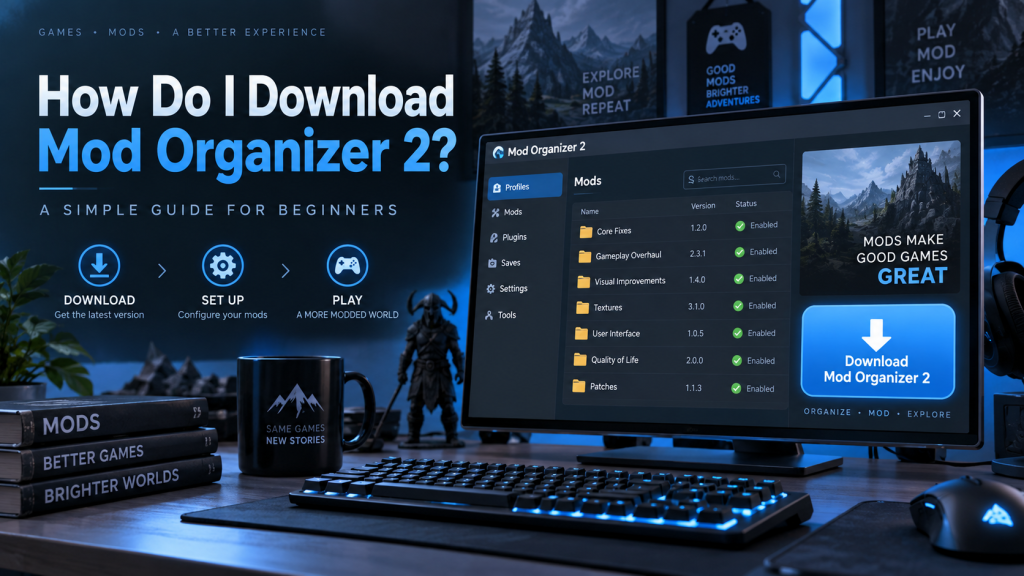
Mod Organizer 2, commonly called MO2, is a popular mod management tool designed for players who regularly install, test, organize, or remove game modifications. Its virtual file system helps keep original game folders cleaner while allowing users to manage large mod collections more efficiently.
Downloading Mod Organizer 2 is straightforward when you use trusted sources. The official MO2 GitHub releases page and its Nexus Mods page are commonly used download locations. The current stable release listed on both sources is version 2.5.2.
Read More: What is Mod Organizer 2?
What Is Mod Organizer 2?
Mod Organizer 2 is a free mod management application created for users who want greater control over game modifications. Instead of placing every mod directly inside game directories, MO2 uses a virtualized system that helps separate mod files from original installation files.
This approach makes enabling, disabling, testing, and rearranging mods easier. It can also reduce problems caused by manually replacing important game files.
MO2 is especially popular among users who modify Bethesda games and other supported PC titles.
Mod Organizer 2 System Requirements
Before downloading MO2, make sure your computer meets its basic software requirements.
Current MO2 releases require Windows 10 version 1809 or newer, or Windows 11. The project also notes a requirement for the Microsoft Visual C++ Redistributable for current releases.
Important requirements include:
- Windows 10 1809 or newer
- Windows 11
- Sufficient free storage for MO2, downloaded mods, profiles, and backups
- Supported PC game installation
- Microsoft Visual C++ Redistributable when required by the release
Checking these requirements before installation can prevent startup errors or compatibility problems.
How Do I Download Mod Organizer 2?
Use an official or trusted download source whenever possible. Avoid unknown websites offering modified MO2 installers because unofficial packages can contain outdated, altered, or potentially unsafe files.
Follow these steps:
- Open the official Mod Organizer 2 GitHub releases page or its official Nexus Mods listing.
- Find the latest stable Mod Organizer 2 release rather than a release candidate or experimental build.
- Choose the installer version if you want a standard installation process.
- Download the installation file to your computer.
- Open your Downloads folder after the file finishes downloading.
- Run the MO2 installer and follow the installation prompts.
- Launch Mod Organizer 2 and select the game you want to manage when configuration begins.
The official GitHub releases page currently identifies version 2.5.2 as the latest stable release, while Nexus Mods also lists version 2.5.2.
Should You Download the Installer or Archive?
MO2 releases may provide different downloadable packages. For most beginners, the regular installer is usually the easiest choice because it guides you through configuration.
An archive or portable-style package can be useful for experienced users who prefer greater control over file locations or maintain multiple MO2 setups.
Most users beginning with Mod Organizer 2 should choose the standard installer unless they have a specific reason to use another package.
Installing Mod Organizer 2
After downloading the installer, open it and follow the setup instructions displayed on your screen. Choose an installation location that is easy to access and has sufficient storage.
Avoid unnecessarily placing heavily modified setups inside protected Windows directories if permissions become problematic. Keeping MO2 and modding-related files organized can make troubleshooting easier later.
During first launch, MO2 may ask whether you want to create a global or portable instance, depending on your setup and application version. Your choice determines where profiles, downloads, configuration files, and other instance-related information are stored.
Setting Up Mod Organizer 2
After installation, MO2 needs to identify the game you intend to modify. Choose the correct supported game installation when prompted.
You can then configure important settings such as download locations, profiles, mod directories, and Nexus Mods integration.
Useful setup practices include:
- Create separate profiles for different mod configurations
- Keep downloaded mod archives organized
- Check mod requirements before installation
- Arrange plugin and mod priority carefully
- Back up important profiles before major changes
- Install mods gradually rather than adding dozens at once
These practices make troubleshooting considerably easier when conflicts appear.
Is Mod Organizer 2 Free?
Yes. Mod Organizer 2 is available as free software through its official project releases and trusted modding platforms.
You do not need to purchase MO2 itself to manage supported games. Some external modding websites may provide optional premium services, but those services are separate from the Mod Organizer 2 application.
Is Mod Organizer 2 Safe to Download?
MO2 should be downloaded from recognized sources such as the project’s official GitHub releases or its verified Nexus Mods page.
Nexus Mods currently marks its MO2 listing as safe to use, while the GitHub project provides official release files directly from the development project.
Avoid downloading installers from random software mirrors, file-sharing websites, or unofficial pages when an official source is available.
Why Use Mod Organizer 2?
One major advantage of MO2 is its virtual file management system. Mods can remain separated from original game files while still being presented to the game when launched through the configured environment.
This design makes experimenting with different mod combinations much easier. Users can disable problematic mods, change priorities, switch profiles, or test alternative setups without repeatedly modifying core game directories.
MO2 can therefore provide a cleaner and more flexible workflow than manually copying individual mod files.
Common Download Problems
Occasionally, users may encounter browser warnings, interrupted downloads, missing runtime components, or installation permission problems.
First, confirm that the file came from an official source. Then check your Windows version and required Microsoft runtime components. Restarting the installer with appropriate permissions can sometimes solve installation-related issues.
If MO2 launches but cannot detect your game, verify the game’s installation location and confirm that the specific game version is supported.
Conclusion
Downloading Mod Organizer 2 is simple when you use the official GitHub releases page or its recognized Nexus Mods listing. Choose the latest stable version, download the appropriate installer, complete setup, and connect MO2 with your supported game.
Proper installation gives you a powerful environment for organizing mods, managing profiles, testing different configurations, and keeping game modifications more controlled. Beginners should start with a simple setup and add mods gradually to reduce conflicts and make troubleshooting easier.
Pingback: Is Mod Organizer 2 Free to Use?