
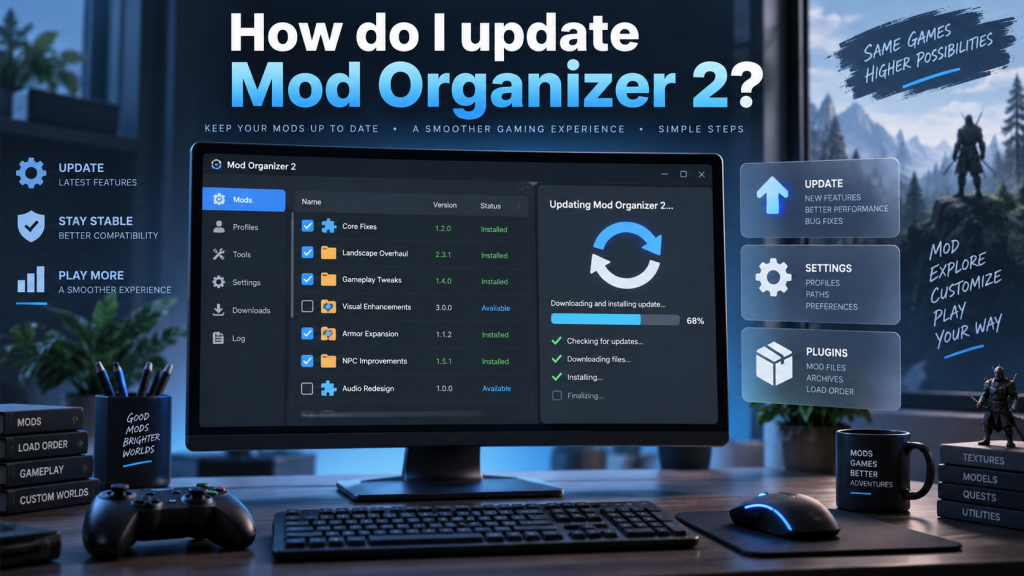
Keeping Mod Organizer 2 updated is important for maintaining compatibility, improving stability, fixing known bugs, and accessing newer mod-management features. MO2 is widely used for managing mods without directly changing the original game folder, making it particularly useful for heavily modded games. However, updating the program should be handled carefully because profiles, downloads, plugins, settings, and custom configurations may be important to your existing setup.
Fortunately, updating Mod Organizer 2 is generally straightforward when you follow the correct process. Before installing a newer release, you should check your current version, review the release information, create a backup, and understand whether your installation is portable or installer-based. Following these precautions can significantly reduce the risk of losing important modding data.
Read More: What Is the Difference Between Mod Organizer 2 and Vortex?
Check Your Current Mod Organizer 2 Version
Before updating Mod Organizer 2, check which version is currently installed on your computer. Open MO2 and look for the version number displayed within the application, usually through the program information or About section. Knowing your installed version helps you determine whether a newer stable release is available and whether special migration instructions apply.
It is especially important to review release notes when moving between major MO2 versions. For example, the official Mod Organizer 2 release documentation previously recommended a clean installation when moving from older 2.4.4-era installations to version 2.5.0 because leftover program files could cause problems. Before updating, check these basic details:
- Your currently installed MO2 version
- Whether you use an installer or portable setup
- Whether third-party plugins are installed
- Whether profiles contain important custom settings
- Whether a newer stable release is available
Back Up Mod Organizer 2 Before Updating
Creating a backup is one of the most important steps before updating Mod Organizer 2. Although normal upgrades should preserve your modding environment, a backup provides protection if something goes wrong. This is particularly valuable for users who have spent many hours arranging mod priorities, configuring profiles, installing custom plugins, or adjusting game-specific settings.
For portable installations, important information may be stored directly inside the Mod Organizer 2 directory. The official MO2 release guidance identifies folders such as mods, downloads, profiles, and overwrite, along with the modorganizer.ini configuration file, as important data when migrating an older portable instance. Consider backing up:
- The
modsfolder - The
profilesfolder - The
downloadsfolder - The
overwritefolder - The
modorganizer.inifile
Download the Latest Mod Organizer 2 Version
The safest approach is to obtain Mod Organizer 2 from its official sources. The MO2 project states that the application can be downloaded through GitHub or Nexus Mods, while its installer is generally preferred because it provides an easier installation process and can also create portable installations. Avoid unofficial download websites because outdated or altered packages may create unnecessary security or compatibility risks.
When visiting the official GitHub releases page, read the information accompanying the release instead of immediately downloading the first available file. Stable releases are usually the better option for most users, while beta, release-candidate, or development versions may be intended for testing. Release notes can also warn you about operating-system requirements, incompatible plugins, migration requirements, or other important changes.
Update Mod Organizer 2 Using the Installer
If you originally installed MO2 using its installer, updating through the official installer is usually the simplest method. Close Mod Organizer 2 and any related tools first, including programs launched through MO2. Download the appropriate installer and run it using your normal Windows account. Select the appropriate installation or instance options and carefully review each installer screen before continuing.
The installer method is useful because it handles the program files more systematically than manually replacing individual components. Major-version upgrades may behave differently from small maintenance releases, however, so always read the release notes. The official 2.5.0 documentation, for example, warned that the installer would remove third-party plugins because many plugins created for 2.4.4 were not compatible. A safe update workflow is:
- Close MO2 and related modding utilities
- Back up important folders and configuration files
- Download the latest stable installer from an official source
- Run the installer and verify the installation location
- Launch MO2 and confirm your profiles and mods remain available
Updating a Portable Mod Organizer 2 Installation
Portable installations require slightly more attention because application files and user data can exist within the same directory structure. For ordinary minor updates, replacing program files may sometimes work, but major releases can contain structural or dependency changes. You should therefore follow the instructions provided for the specific version rather than assuming every portable update can simply overwrite an older installation.
For significant upgrades, creating a new clean MO2 installation can be safer. You can then migrate important data after verifying that the new version starts correctly. Official guidance for older portable installations specifically mentions transferring mods, downloads, profiles, overwrite data, and modorganizer.ini into a new installation. This approach also helps prevent obsolete application files from interfering with newer components.
Check Plugins After Updating MO2
Third-party plugins deserve special attention after a Mod Organizer 2 update. Plugins can depend on particular MO2 APIs, Python versions, libraries, or internal behavior. A plugin that worked perfectly on an older release may become unstable after a major program update. This does not necessarily mean that MO2 itself is broken; the plugin may simply require an updated version.
After updating, launch MO2 and inspect your usual tools and plugins before beginning a long modding session. Check plugin developers’ pages for newer releases whenever a plugin stops loading or starts generating errors. Official MO2 guidance has specifically recommended waiting for compatible updates before opening certain instances when third-party game plugins may not yet support a major new MO2 release.
Verify Your Mods, Profiles, and Executables
Once the update finishes, do not immediately start installing or removing mods. First confirm that your existing profiles are visible and that your enabled mods still appear in the expected priority order. Check the plugins panel, download history, overwrite section, profile-specific saves, and any custom configuration you regularly use.
You should also verify external programs configured through MO2, such as script extenders, patching utilities, sorting tools, or game-specific applications. Start with a familiar profile and launch the game briefly through MO2. If everything loads correctly, you can continue using the updated installation with greater confidence.
What If Mod Organizer 2 Does Not Work After Updating?
If MO2 fails to launch after an update, avoid immediately deleting your complete setup. First, check whether the new release changed system requirements or removed support for an older dependency. For example, MO2 version 2.5.0 introduced a requirement for Windows 10 version 1809 or newer, or Windows 11, following its transition to newer Qt and Python components.
You can also temporarily disable incompatible third-party plugins, review MO2 logs, verify installation paths, and compare the problem with the release notes. If the issue began during a major upgrade, performing a clean installation and restoring your backed-up user data may be more reliable than repeatedly overwriting old files. Keeping the backup untouched until the new installation is fully tested makes recovery considerably easier.
Should You Update Mod Organizer 2 Immediately?
You do not necessarily need to install every new MO2 release the moment it becomes available. If your current setup works reliably and a newly released version contains major architectural changes, waiting briefly can allow plugin developers and the modding community to identify compatibility issues. This is especially sensible for complicated setups containing hundreds of mods and several third-party extensions.
Security fixes, important bug fixes, compatibility improvements, and support for newer tools can still make updates worthwhile. The best approach is to read the release notes, evaluate changes that affect your setup, verify plugin compatibility, and create a backup before proceeding. Updating deliberately rather than automatically gives you better control over a carefully configured modding environment.
Conclusion
Updating Mod Organizer 2 is usually an easy process, but protecting your existing configuration should always come first. Check your current version, download the update only from official sources, back up important MO2 data, and carefully read the release notes. Installer-based users can normally follow the official installer workflow, while portable users should pay closer attention to migration instructions during major upgrades.
After updating, verify your mods, profiles, executables, plugins, and game launch before making additional changes. If problems appear, your backup gives you a reliable recovery option. Taking a few precautions allows you to benefit from newer MO2 features and fixes while keeping your modding setup stable, organized, and ready for continued use.
Pingback: Where Does Mod Organizer 2 Store Mods?