
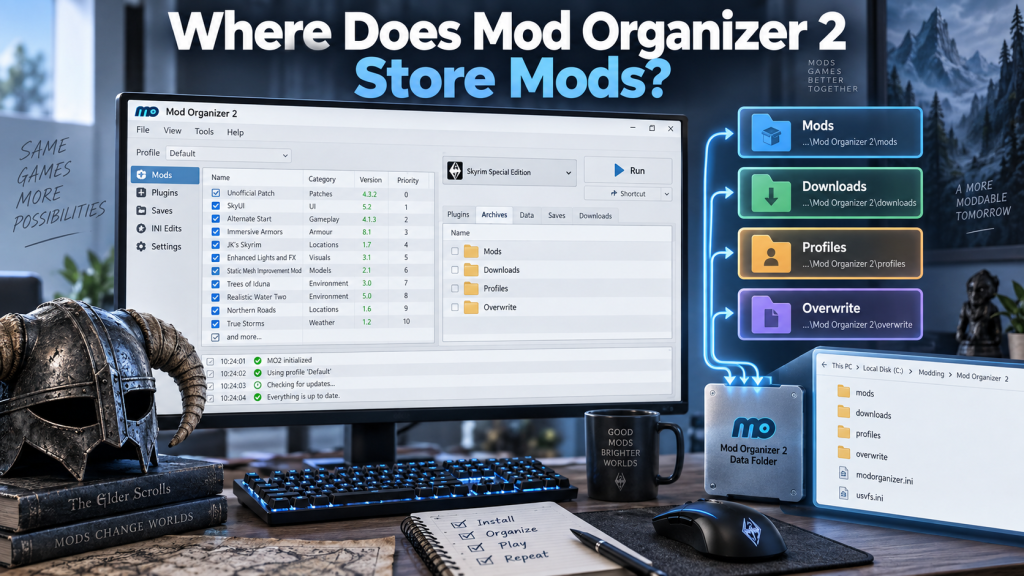
Mod Organizer 2, commonly known as MO2, is a powerful mod management tool used for games such as Skyrim, Fallout, and other supported titles. One feature that makes MO2 different from traditional mod managers is its virtual file system. Instead of placing most installed mod files directly inside a game’s Data folder, MO2 keeps them in separate folders and presents them virtually when the game launches.
Knowing where Mod Organizer 2 stores mods can help when backing up a setup, moving mods to another drive, troubleshooting missing files, or reinstalling Windows. The exact location depends on the type of MO2 instance you created and whether you changed its storage settings. Fortunately, MO2 provides tools for checking these paths directly.
Read More: How Do I Update Mod Organizer 2?
Where Does Mod Organizer 2 Store Installed Mods?
By default, Mod Organizer 2 stores installed mods inside the Mods directory associated with the current MO2 instance. Every installed mod normally receives its own individual folder. This structure allows MO2 to enable, disable, prioritize, or remove mods without directly changing most original files inside the game’s installation directory.
MO2’s instance configuration includes separate locations for mods, downloads, profiles, and the overwrite directory. Its current interface also allows users to select where this data should be stored when creating an instance. A typical MO2 storage structure may contain:
mods— contains extracted and installed mod files.downloads— contains downloaded mod archives and related files.profiles— contains configuration information for individual MO2 profiles.
Where Is the Mod Organizer 2 Mods Folder?
The easiest way to find the exact Mod Organizer 2 mods folder is through MO2 itself rather than guessing its location. Open Mod Organizer 2 and check the configured paths for your current instance. The program maintains a base directory along with separate directories for Mods, Downloads, Profiles, and Overwrite.
The exact location can therefore differ between computers. Users who accepted the default instance configuration may have their files in MO2’s chosen instance data location, while users who selected another drive may have the Mods folder somewhere completely different. Common possibilities include:
- A Mods folder underneath the current MO2 instance’s base directory.
- A custom folder on another SSD or hard drive selected by the user.
- A Mods folder located alongside MO2 when using a portable instance.
Portable Instance vs Global Instance Storage
A portable instance works differently from a standard MO2 instance. According to Mod Organizer 2’s own interface text, a portable instance stores its data inside the Mod Organizer installation folder. MO2 also limits an installation to one portable instance. This setup can be convenient if you want the application and its associated mod-management data kept together.
A non-portable or global-style instance separates instance information from the main application installation. MO2 lets you choose a location containing downloads, mods, profiles, and overwrite data while creating an instance. Because users can customize these directories, there is no single Windows path that is guaranteed to contain every user’s mods.
How to Find Your Mod Folder in Mod Organizer 2
The safest method is to identify the location directly through MO2. Open the application, make sure you are working with the correct game instance, and review its path or instance settings. MO2’s instance-management interface can display both the instance location and its base directory, helping users identify where the related data is stored.
Using the configured path is especially important when several MO2 instances exist on the same PC. Skyrim, Fallout 4, or another supported game can use separate data locations. Before copying or deleting anything, confirm that you are viewing the correct instance. Check these areas:
- The current instance’s Base Directory setting.
- The Mods path configured for that particular instance.
- The Downloads, Profiles, and Overwrite paths if you are creating a complete backup.
Does MO2 Store Mods Inside the Game Folder?
Normally, one of Mod Organizer 2’s major advantages is that installed mod content can remain separate from the game’s normal Data directory. MO2 builds a virtualized environment so enabled mod files can appear available to the game when applications are launched through Mod Organizer. This approach helps users maintain a cleaner game installation and makes managing mod conflicts easier.
This separation should not be confused with saying MO2 can never affect or use game-related locations. Game support and virtualization behavior can vary depending on the title and plugin implementation. For example, MO2’s game-support system defines game data locations and other game-specific directories. Therefore, users should manage files through MO2 whenever possible instead of manually moving installed mod contents into a game’s Data folder.
Where Does MO2 Store Downloaded Mod Archives?
Downloaded archives are generally stored separately from installed mods. The Downloads directory contains the packages MO2 obtains or imports before installation, while the Mods directory contains the extracted files that MO2 manages as installed mods. MO2 explicitly provides separate configurable Mods and Downloads directories within an instance.
This distinction matters when cleaning up disk space. Deleting an archive from Downloads does not necessarily mean the already installed mod folder has also been deleted. Likewise, removing an installed mod does not automatically mean every downloaded archive is gone. Always inspect both locations before deciding how much storage MO2 is using.
Where Are Mod Organizer 2 Profiles Stored?
MO2 keeps profile information in a dedicated Profiles directory associated with the active instance. Profiles let players maintain different sets of enabled mods and plugin configurations while drawing from a shared pool of installed mods. MO2’s own profile interface describes each profile as maintaining its own mod activation and installation order as well as its plugin configuration.
Profiles can also support profile-specific game INI files and, when enabled, profile-specific save games. This is why backing up only the Mods directory may not preserve every part of a customized setup. For a more complete backup, users should consider the Mods, Profiles, Downloads where required, and other relevant instance data.
Can You Change the Mod Storage Location?
Yes. Mod Organizer 2 supports configurable storage paths, so users can keep mods on another drive if their primary system drive has limited space. Its instance-creation interface includes advanced path options for the Base Directory, Mods, Downloads, Profiles, and Overwrite folders. It also supports %BASE_DIR% as a reference to the selected base directory.
Moving a large existing setup should be done carefully because MO2 expects files at configured locations. A safer approach is to close MO2, create a backup, move the required data, and update the relevant path configuration before continuing. Avoid deleting the original copy until you have confirmed that installed mods, profiles, and executables work correctly from the new location.
Why Knowing the MO2 Storage Location Matters
Understanding the Mod Organizer 2 storage structure makes troubleshooting much easier. If a mod unexpectedly disappears, an installation consumes too much disk space, or you want to migrate to another drive, knowing the Mods, Downloads, Profiles, and Overwrite locations helps you determine which files need attention instead of searching through the entire computer.
It is equally useful for backups. A carefully maintained MO2 setup can represent many hours of downloading, installation, conflict resolution, priority changes, and profile configuration. Identifying the correct instance folders allows you to protect that work and restore it much more efficiently after hardware changes, Windows reinstallations, or storage upgrades.
Conclusion
So, where does Mod Organizer 2 store mods? Installed mods are generally kept inside the Mods directory configured for the active MO2 instance rather than simply being copied into the game’s normal Data folder. Downloads, profiles, and overwrite files have their own configurable locations, while portable instances keep their data within the Mod Organizer installation folder.
Because MO2 allows storage paths to be customized, the exact folder can vary from one computer to another. The most reliable method is to check the Base Directory and Mods path from within your current MO2 instance. Once you understand these locations, backing up, moving, restoring, and troubleshooting your mod setup becomes significantly easier.